
应用WEB标准实例:列表页面的制作
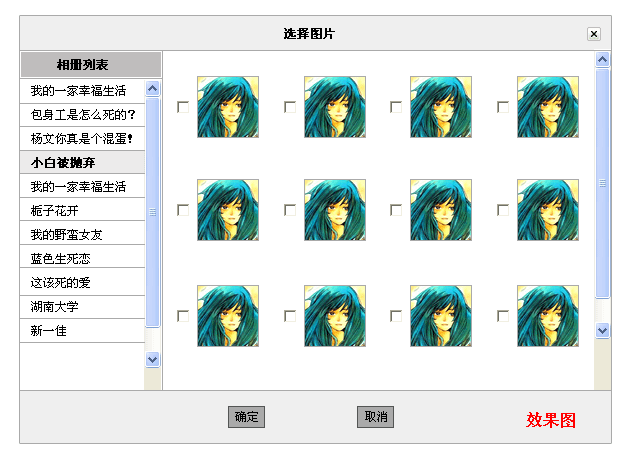 整体观察思考:
在开始制作页面前,我们首先要观察图的结构,考虑怎样布局,布局对一个网站来说非常重要,他是整个体系的骨骼。
再看此图
很经典的三行两列结构,分为四块,TOP、RIGHT、LEFT、BOTTOM。如下图
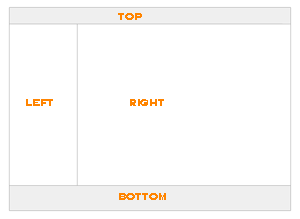
以上我们思考过整体的结构,接下来我们要考虑如何把思考出来的结构变化成"骨骼"
如下图(盒模型来分析)
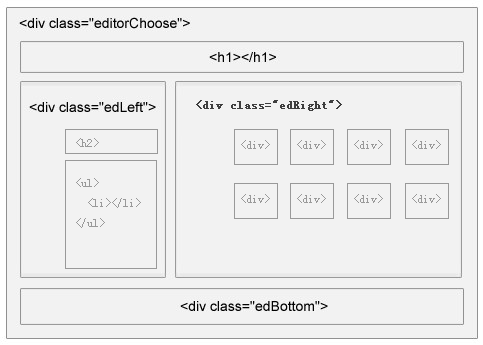
制作流程:
主体制作 --> 细节制作
一、制作主体:
xhtml:
<div class="editorChoose">
<h1></h1>
<div class="edRight"> </div>
<div class="edLeft"> </div>
<div class="edBottom"></div>
</div>
css:
@import url("http://www.07art.com/public/public.css");
.editorChoose{width:591px;height:400px;border:1px solid #aaa;background:#fff;}
/*TOP内容*/
.editorChoose h1{height:30px;line-height:30px;border-bottom:1px solid #aaa;text-align:center;font-weight:bold;color:#000;background:#efefef;}
/*LEFT内容*/
.edLeft{float:left;width:142px;height:317px;border-right:1px solid #aaa;overflow:auto;}
/*RIGHT内容*/
.edRight{float:right;width:448px;height:317px;overflow:auto;}
/*BOTTOM内容*/
.edBottom{clear:both;padding-top:15px;height:35px;border-top:1px solid #aaa;text-align:center;background:#efefef;}
骨骼出来了,接下来我们该在骨骼上添加"血"遇"肉",这样才算完整的.
二、细节制作: (1) TOP制作
先来看一下TOP容器中的细节部分。

看上去这里很简洁,文字居中,关闭按钮居右并且距上8px、距右10px的距离。
考虑TOP的结构,关闭按钮在右边,那么我们就要给关闭按钮一个右浮动(float:right;)。
注意:当关闭按钮要右浮动的时候,关闭按钮放在文字前面。 <h1><a href="#"><img src="images/dot30.gif" alt=""/></a>选择图片</h1>相对应的css
.editorChoose h1{height:30px;line-height:30px;border-bottom:1px solid #aaa;text-align:center;font-weight:bold;color:#000;background:#efefef;}/*文字居中*/
.editorChoose h1 img{float:right;margin:8px 10px 0px 0px;}/*图片居右*/
看一下RIGHT容器中的细节部分。
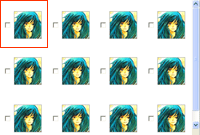
红块区域为重复区域,所以只做一块,然后copy就可以.
<div>
<input name="checkbox" type="checkbox" value="" />
<img src="images/pic02.jpg" alt=""/>
</div>
相对应的css
.edRight div{width:95px;padding:18px 0px 12px 10px;float:left;}
.edBottom{clear:both;padding-top:15px;height:35px;border-top:1px solid #aaa;text-align:center;background:#efefef;}
(3) LEFT制作
看一下RIGHT容器中的细节部分。
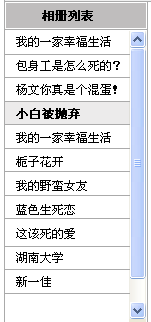
这是一个列表性质的图,首先就要考虑ul li。
h2 标签写相册“相册列表”位置
ul 写下面的列表,并用overflow:auto;来控制滚动条,
xhtml:
<h2><span>相册列表</span></h2><ul>
<li><a href="#">我的一家幸福生活</a></li>
<li><a href="#">包身工是怎么死的?</a></li>
<li><a href="#">杨文你真是个混蛋!</a></li>
<li class="background"><a href="#">小白被抛弃</a></li>
<li><a href="#">我的一家幸福生活</a></li>
<li><a href="#">栀子花开</a></li>
<li><a href="#">我的野蛮女友</a></li>
<li><a href="#">蓝色生死恋</a></li>
<li><a href="#">这该死的爱</a></li>
<li><a href="#">湖南大学</a></li>
<li><a href="#">新一佳</a></li>
<li><a href="#">新一佳</a></li>
<li><a href="#">新一佳</a></li>
<li><a href="#">新一佳</a></li>
<li><a href="#">新一佳</a></li>
</ul>
css:
.edLeft h2{padding:1px 1px 0px 1px;height:26px;border-bottom:1px solid #aaa;}
.edLeft h2 span{text-align:center;height:25px;background:#BFBDBD;color:#000;text-align:center;font-weight:bold;line-height:25px;display:block;}
.edLeft{float:left;width:142px;height:317px;border-right:1px solid #aaa;}
.edLeft ul{height:290px;overflow:auto;}
.edLeft li{height:27px;line-height:27px;border-bottom:1px solid #aaa;padding-left:10px;}
.edLeft li a{color:#000;}
.edLeft li a:link,.edLeft dd a:visited{text-decoration:none;}
.edLeft li a:hover{text-decoration:underline;}
.edLeft li.background{background:#ECEBEB;}
(4) BOTTOM制作

这里我把按钮写成input的形式
<input type="button" name="button" value="确 定"/> <input name="button" type="button" value="取 消"/>
相对应的css
.edBottom input{width:37px;height:22px;color:#000;border:1px solid #555;background:#aaa;}
11111111111
 选择图片
选择图片
 相册列表
我的一家幸福生活
包身工是怎么死的?
杨文你真是个混蛋!
小白被抛弃
我的一家幸福生活
栀子花开
我的野蛮女友
蓝色生死恋
这该死的爱
湖南大学
新一佳
新一佳
新一佳
新一佳
新一佳
相册列表
我的一家幸福生活
包身工是怎么死的?
杨文你真是个混蛋!
小白被抛弃
我的一家幸福生活
栀子花开
我的野蛮女友
蓝色生死恋
这该死的爱
湖南大学
新一佳
新一佳
新一佳
新一佳
新一佳
[Ctrl+A 全选 注:如需引入外部Js需刷新才能执行]
用CSS构建iframe效果代码
iframe应用很普遍,通常的需求有两种:1,获取iframe效果,就是带一个滚动条,可以省不少版面。2,要嵌一个页面,实现框架链接。如果不方便使用iframe
用CSS给图片打标的方法
!DOCTYPEhtmlPUBLIC"-//W3C//DTDXHTML1.0Transitional//EN""http://www.w3.org/TR/xhtml1/DTD/xhtml1-transitional.dtd"htmlxmlns="http://www.w3.org/1999/xhtml"headmetahttp-equiv="Content-Type"content="text/h
用css动态生成闪字的代码
需要的一张图片:aa我是中国人请输入:gimoo.net[Ctrl+A全选注:如需引入外部Js需刷新才能执行]
编辑:一起学习网
标签:新一佳,按钮,骨骼,细节,幸福生活